Each PN must be “enrolled” with the onQ HA Appliance using the Protect Me button and the onQ EZ Installer, which analyzes your PN and pre-configures it on the onQ Appliance.
|
Warning: In almost all instances, Non‑NTFS partitions are not supported for VSS‑based snapshots. Do not protect such partitions with onQ. Protecting such non‑NTFS partitions might result in the Quorum agent terminating the backup. The only exception is the volume configured with REFS that is new in Windows Server 2012.
|
|
Note: Even if you added the new node manually and it appears in the list of protected nodes, you must enroll the node before the onQ Manager can protect it. Previously protected nodes that are still running the onQ Service do not need to be enrolled; in this case, simply add the nodes manually, then start protection.
|
|
1.
|
Log on to the server that you want to enroll as a PN.
|
|
2.
|
From that server, log on, as a user with Administrator privileges, to the HA Appliance’s onQ Portal using a supported browser as outlined in Browser Support.
|
|
3.
|
Click on the PROTECTION CONFIG tab.
|
|
4.
|
|
5.
|
Run the onQ Service executable (onQEZInstaller.exe).
|
|
a.
|
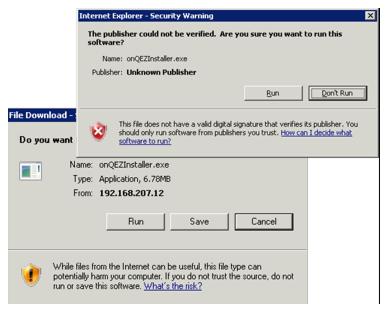
When prompted by your browser, click Run, the Run again to confirm the Unknown Publisher. . If you’re using Firefox, you need to double-click on the executable before you can run the installer.
 |
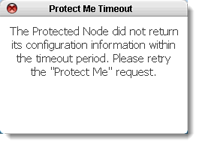
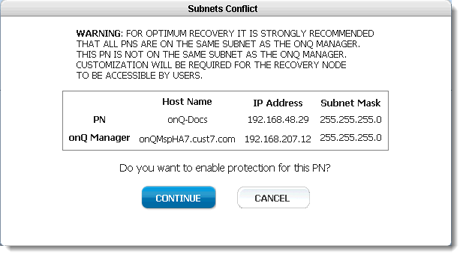
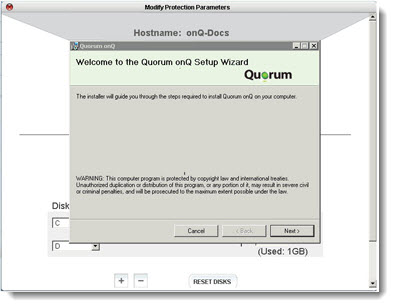
After the installer discovers and displays the disk and memory parameters for the RN corresponding to this PN, the Modify Protection Parameters dialog appears behind the Setup Wizard launches.
|
•
|
|
•
|
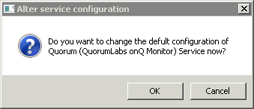
Click OK, then, in the dialog that launches, specify the account and credentials that you want the service to use, then OK. For example, you can configure the service to run as administrator. If you want the service to run as the domain administrator specify the domain:
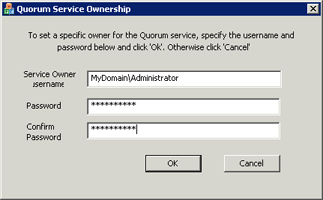 |
A service running on Windows generally runs as a user account, usually Local System by default. However, you can configure the service to run as any user. At the end of the process, onQ Manager presents you with a summary of the RN's proposed configuration.
In the Modify Protection Parameters dialog, specify values for the node parameters, then click SAVE to add the node to the list of protected nodes.
Optionally, you can modify the node at any time.
If the installer fails at this point because there isn’t enough disk space, refer to Add protected nodes manually; otherwise, the PN appears in the list.