In the event of a disaster, you might need to start all the recovery nodes on the DR Appliance.
|
•
|
You can change the memory allocation of PNs so that the total is less than the memory on the onQ Appliance.
|
|
•
|
To start an individual recovery node in production mode:
|
1.
|
(Optional) Consider suspending RN tests to “free up” resources.
|
|
3.
|
|
4.
|
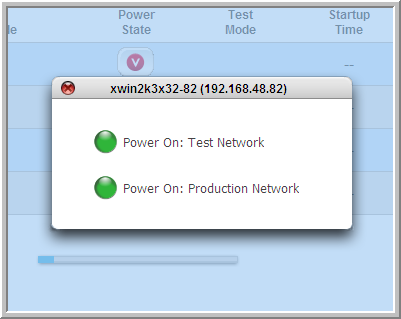
Locate the Power State column.
|
When you click the button in the Power State column, a box appears that offers you a choice between the following two alternatives: Power On: Test Network or Power On: Production Network.
|
5.
|
Choose the Power On: Production Network power option.
|
To start all recovery nodes in production mode:
|
1.
|
(Optional) Consider suspending RN tests to “free up” resources.
|
|
3.
|
|
4.
|
|
5.
|
Locate Link Status.
|
|
6.
|
Click on the Link Status light (and the light is green). You are asked if you wish to Power On the DR RNs.
|
|
7.
|
Click Apply to start all the DR recovery nodes.
|