Before you can install onQ Appliance or PN software updates, you must do one of the following to get the updates:
|
•
|
Manually upload packages to the onQ Appliance. Contact Quorum Support for assistance.
|
Before you can download Appliance software updates, you must enroll with onQ Central, a package distribution system, by installing an Appliance license as outlined in Install onQ Appliance license. onQ queries https://updates.onqcentral.com; therefore, ensure that your firewall is configured to allow traffic on outbound port 443.
After onQ downloads the Appliance software updates, you can install them as outlined in Update Appliance software.
|
1.
|
Log on to the onQ Portal.
|
|
2.
|
onQ contacts onQ Central and downloads the latest updates. If a direct upgrade path is not supported for your version, onQ automatically downloads all the prerequisite updates so as to migrate your Appliance and protected nodes to the latest version.
|
3.
|
Mouse-over the Check for Updates button to monitor the status of the download. If there are no new updates, the status indicates No new updates are avaiable at this time.
|
Type - indicates Auto Install when you download the updates using the method outlined in this procedure.
Installed - indicates when the update was installed on the Appliance. This field is blank until you initiate an install of the update.
Note: The Dashboard displays an INSTALL UPDATES button when a package has been downloaded and is available to install. This button remains until you install all available packages: 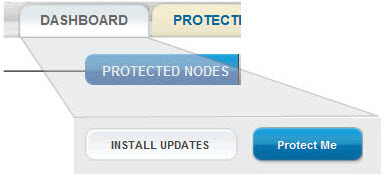
|
2.
|
Log on to the onQ Portal.
|
|
3.
|
Go to APPLIANCE CONFIG tab > ADVANCED button > Software Upgrades page > UPLOAD button. The Upload SW dialog appears.
|
You see a list of a variety of potential software upgrades that have been either delivered with the onQ ApplianceAV Appliance or have been transferred to the Appliance or PN subsequent to installation.
|
4.
|
Browse to and select the file that you saved to your local computer.
|
|
•
|
|
•
|
|
6.
|
Click Upload.
|