For an exclude list, Quorum recognizes file- and folder-names expressed as IEEE POSIX Basic Regular Expressions (BRE). You will find a synopsis of BRE syntax at http://en.wikipedia.org/wiki/Regular_expression.
This procedure assumes that you’re modifying the exclude list for an existing protected node. However, you can perform this procedure from either the Add Protected Node page or the Modify Protected Node page. Exclude lists are specific to the protected node’s operating system.
|
1.
|
Log on to the HA Appliance’s onQ Portal.
|
|
2.
|
Click the PROTECTION CONFIG tab.
|
|
3.
|
|
4.
|
|
b.
|
Select an Apply To: radio button that represents the path type. The path can be the folder or file or both.
|
|
c.
|
Select an Entry: radio button to indicate that you’d like to exclude the file or folder wherever it is found or if you want to exclude only that specific full path.
|
In the following example, the Exclude Paths, Apply To, and Entry choices mean “do not back up the contents” for c:\hiberfil.sys, Temporary Internet Files, \$Recycle Bin, \RECYCLER, \System Volume Information, and \Windows Temp. 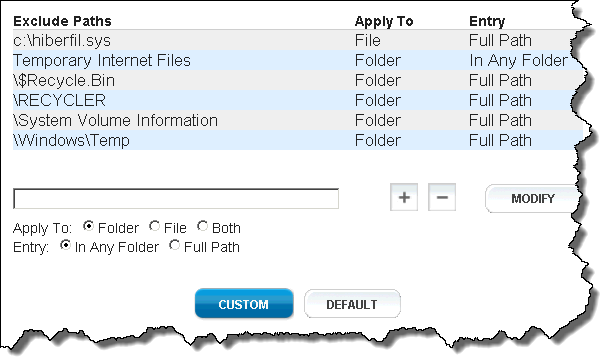
|
6.
|
Click the plus (+) button.
|
|
•
|
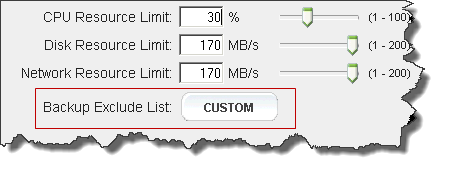
Click Save - onQ Portal saves your exclude list as shown in the list, then returns you to the previous page. The Backup Exclude List: button is labeled Custom. You cannot save the list if the total length of all paths exceeds 2,000 characters. Also, each line cannot exceed 512 characters.
|
|
•
|
Click Default - onQ Portal replaces the entire list with the default list (also known as factory default), then returns you to the previous page. The Backup Exclude List: button is labeled Default.
|
|
•
|
Click Revert - onQ Portal discards your changes, then returns you to the previous page. The Backup Exclude List: button does not change.
|