|
•
|
backup transfer margin for that protected node’s backups. The backup transfer margin icons indicate how well backups and DR transfers are keeping up with the scheduled interval.
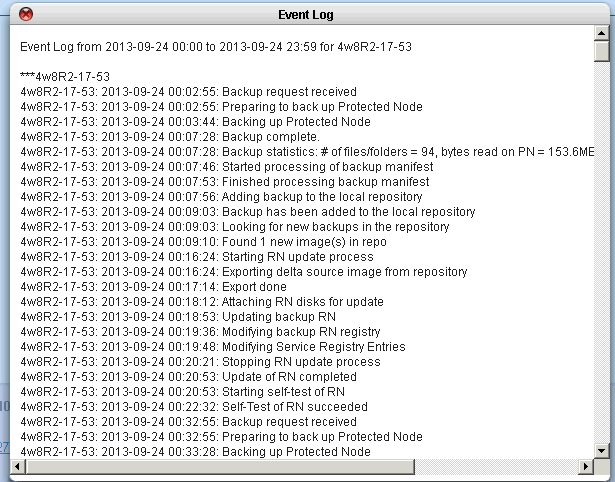
In the event that the interval isn’t met, the Event Log indicates scheduled backup request for <pn_name> occurred before previous backup completed....In this case, increase your interval time so as to avoid this scenario. 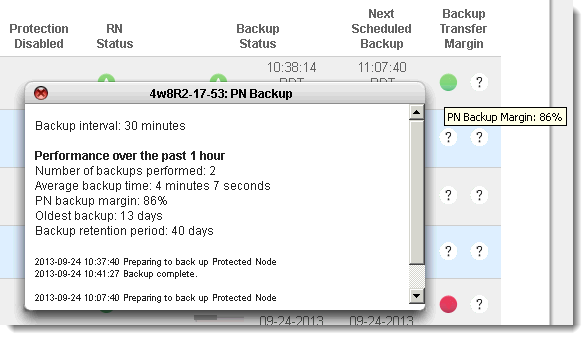
|
1.
|
Log on to either the HA Appliance’s onQ Portal or the DR Appliance’s onQ Portal.
|
|
2.
|
|
3.
|
From the Log Type drop-down list choose one of the following:
|
|
•
|
Event Log — a log of current and past events, listed in alphabetical order by hostname, for all recovery nodes. Use the Display only errors check box to generate a log that only includes events that result in failures or errors. This log has no expiration.
|
|
•
|
Event DB Log — a log of database events internal to the Appliance. These events have severity levels. This log is for Quorum Support use only.
|
|
•
|
Expired Snapshot Log — a log that lists the snapshots and corresponding Protected Nodes that onQ expired and the reason for the expiration. onQ expires snapshots because of a predefined retention policy or critically low disk space.
|
|
•
|
FLR Activity Log — a log of file‑level restores initiated from the onQ Appliance. The report lists the user that initiated the restore, the time the restore started and completed, the status of the restore, the files and folders that were restored, the source (snapshot), and the machine (PN name or IP address) to which the objects were restored.
|
|
•
|
HA --> DR Log — a log of HA to DR data transfer statistics. The transfer log report includes Protected Node name, start and end times, size of data transferred, and the rate of transfer for each snapshot. The transfer rate is an average, and is calculated based on start/stop times and the size in the log entry.
|
|
•
|
Manager Debug Log — a log of debug reports initiated by Quorum. This log is for Quorum Support use only.
|
|
•
|
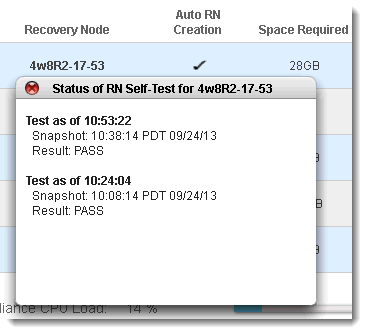
Self Test Log — a log that shows the results of your RN testing.
|
|
•
|
Upgrade Log — a log of all onQ software upgrades for a selected period of time. The report lists the date, time, and the software packages installed on to onQ.
|
|
•
|
WSR Activity Log — a log of all Windows Share Restore activity initiated from the Appliance. The report lists the browsing history, file objects accessed, time of access, and the client machine address from which the WSR was initiated.
|
|
•
|
Click VIEW LOG to see the information displayed.
|
|
•
|
Click DOWNLOAD LOG to download the log to a file on your local computer.
|