Monitoring : Monitor multiple onQ Appliances

Monitor multiple onQ Appliances
Use onQ Monitor to monitor all of your onQ Appliances from a “single pane of glass”. These onQ Appliances can be located in a local datacenter or in the cloud. Think of your onQ Monitor as a dashboard from which you can retrieve information about your onQ Appliances, Protected Notes, and Recovery Nodes.
onQ Monitor enables you to click one tab or one button to:
•
•
•
•
•
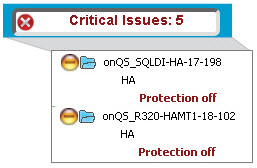
For example, from one location you can view all the onQ Appliances that have protection turned off:
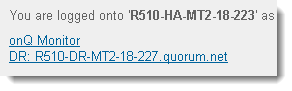
To log on to onQ Monitor.
1.
Log on to the HA Appliance’s onQ Portal.
2.
3.
Click on the onQ Monitor link in the footer.
To configure onQ Monitor:
1.
2.
a.
b.
c.
(Optional) Type a Group name if you’d like to assign the HA Appliance and its DR, DR Mirror(s), and AV to a group.
Groups help you organize your appliances. For example, you can organize your appliance by domain, subnet, or department.
By default, onQ Monitor provides a quorum group to include the HA from which you logged on to the onQ Monitor.
d.
Click ADD.
To browse the status of a PN:
1.
2.
3.
onQ Monitor displays information for each PN by onQ Appliance. Each onQ Appliance is a hyperlink.
4.
•
•
To browse the status of a job:
1.
2.
3.
Click on the STATUS tab.
4.
onQ Monitor displays information for each job by onQ Appliance.
To filter on your onQ Appliances:
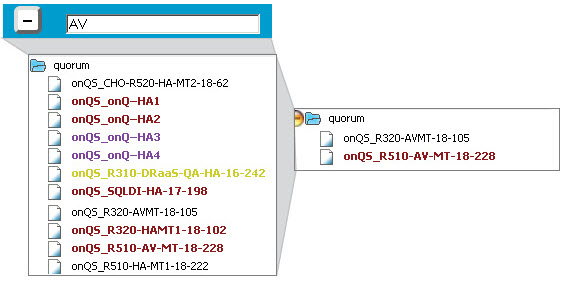
You can use filters to search for a specific appliance name, or if your onQ Appliances have a naming convention, you can filter on a string to search for multiple onQ Appliances. In the following example, a filter is performed on AV string to search for all AV Appliances.

v3.6 HF2
v3.6 HF2