Updates : (Windows) Update node software

(Windows) Update node software
You do not need to initiate an upgrade of the onQ Service on your PNs because onQ does this for you automatically if the:
•
•
During such an upgrade, the Event Log shows the coordination that transpired between onQ and the protected nodes.
There is no way to disable automatic upgrades of the onQ Service. However, you can continue to use the following two alternative upgrade methods.
To automatically install an update:
You must log on as VARAdmin to update the onQ Service on your PNs.
1.
2.
Log on to the onQ Portal.
3.
4.
5.
Go to PROTECTION CONFIG tab.
6.
7.
From the View a Protected Node dialog, click Upgrade onQ Service button. This button does not appear if your Protected Node is running the latest software version.
A Submitting Upgrade Request message appears along with a progress icon.
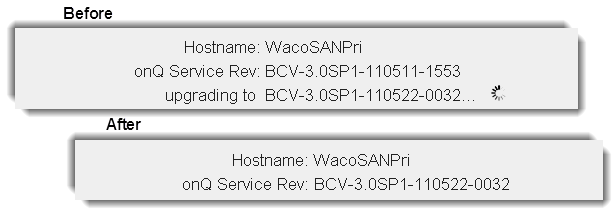
As the PN is upgrading, the View a Protected Node dialog shows the current version of the onQ Service running on the PN, and the version it will be upgraded to.
After the upgrade completes, the new version appears in the onQ Service Rev field:
To manually install an update:
You must log on as VARAdmin to update the onQ Service on your PNs.
1.
2.
Log on to the onQ Portal using Internet Explorer. If you want to use Firefox, download the software before you continue.
3.
4.
5.
Click Protect Me.The Protect Me wizard launches.
The wizard automatically finds the package that you uploaded.
6.

v3.6 HF2
v3.6 HF2