The onQ Portal provides a default RN services list that includes all known services that are problematic. For this reason, the start option is set to Disabled. Alternatively, the onQ Portal enables you to retrieve a comprehensive list of services from which you can build your own custom list.
This procedure assumes that you’re modifying the RN services list for an existing protected node. However, you can perform this procedure from either the Add Protected Node page or the Modify Protected Node page.
|
1.
|
Log on to the HA Appliance’s onQ Portal.
|
|
2.
|
Click the PROTECTION CONFIG tab.
|
|
3.
|
|
4.
|
When you click Custom, the onQ Portal overwrites the values from the custom list with the values from the default list so that the known services that are problematic always default to Disabled. 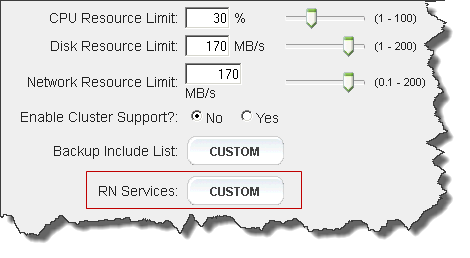
|
•
|
Select an existing service from the table and Modify its start option.
|
|
•
|
Click Extract to retrieve a list of services and settings that recently appeared in your PN’s registry. Prune and or selectively modify this list to meet your needs. This option prevents you from unintentionally misspelling a service name. If no snapshot exists for the PN, which only occurs if you added a PN and the backup is in progress, then the onQ Portal displays an error.
|
|
•
|
|
•
|
Click Save - onQ Portal saves your exclude list as shown in the list, then returns you to the previous page. The Backup Exclude List: button is labeled Custom.
|
|
•
|
Click Default - onQ Portal deletes the custom list and replaces the custom list with the default list (also known as factory default), then returns you to the previous page. The Backup Exclude List: button is labeled Default.
|
|
•
|
Click Revert - onQ Portal discards your changes, then returns you to the previous page. The Backup Exclude List: button does not change.
|