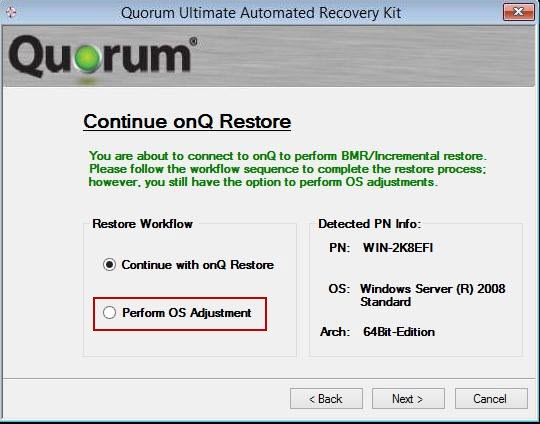
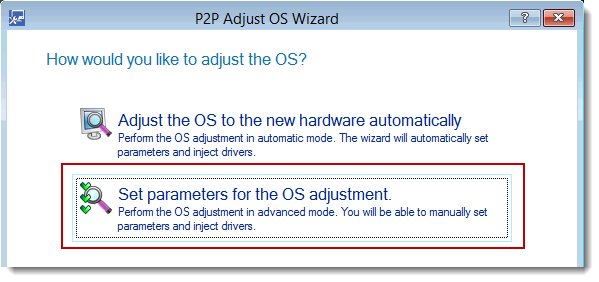
If after performing a BMR your PN does not boot (BSOD), you’re missing boot‑critical drivers. In the rare case that the P2P tool did not properly adjust your PN’s operating system for the new hardware, you need to manually adjust the operating system using the P2P Adjust OS Wizard’s Set parameters for the OS adjustment option. Before you begin, retrieve the necessary drivers.
The Start BMR page appears.
|
2.
|
From the Start BMR page, allow the QUARK wizard to check for basic network and disk controller drivers on which QUARK depends, then Next.
|
|
3.
|
|
4.
|
|
5.
|
|
6.
|
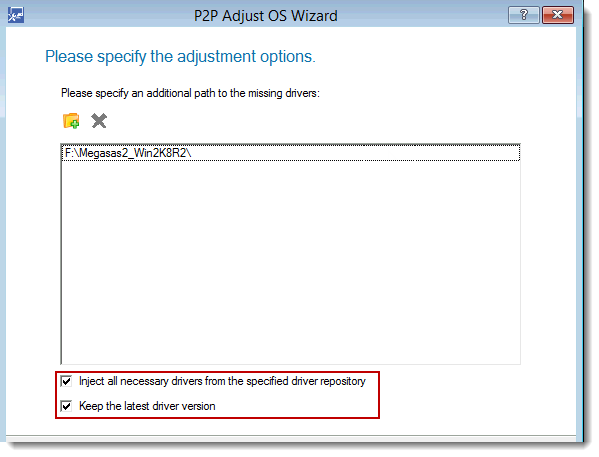
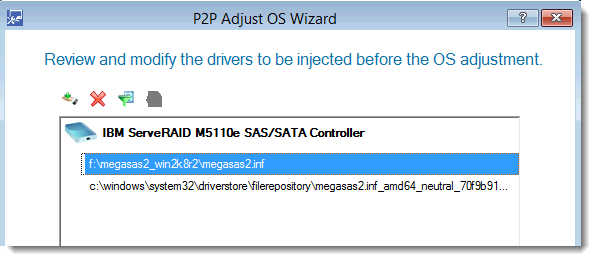
Specify the path to the driver, select the Inject all necessary drivers from the specified repository check box and the Keep the latest driver version check box, then Next.
 |
|
7.
|
|
8.
|
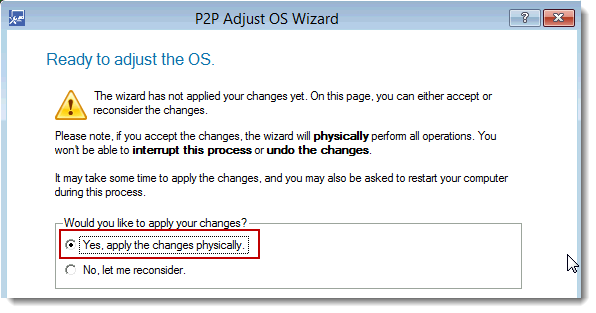
Select the Yes, apply the changes physically radio button to make the necessary adjustments, then Next.
 |
|
9.
|
|
10.
|