To automatically install an update:
|
a.
|
|
b.
|
Click the Check for Updates button.
|
The onQ Portal’s DASHBOARD displays an Install Updates button after the new onQ Archive VaultonQ Appliance software downloads from onQ Central.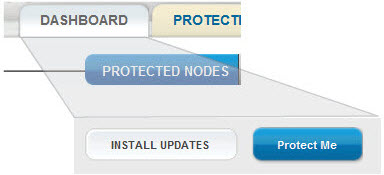
Unless instructed, there is no need to stop protection to apply the updates. If protection is on, onQ quiesces the system, stops protection, applies the new software, then restarts protection. The upgrade process reboots the onQ, if required. The length of time that onQ requires to complete the upgrade depends on the number of active jobs currently running.
|
a.
|
Go to the DASHBOARD tab.
|
|
b.
|
|
c.
|
Click the Upgrade button when prompted to initiate the upgrade.
|
 to display the status of the upgrade.
|
4.
|
To manually install an update:
You must log on as VARAdmin to update the software on your Appliance(s).
|
2.
|
Log on to the onQ Portal.
|
|
3.
|
|
5.
|
|
7.
|
Click Install.
|
|
8.
|