|
3.
|
(64-bit PNs running 3.4, 3.4HF1, and 3.4HF3). Due to the known limitation outlined in Linux RN Limitations, find and remove the existing node packages.
|
|
4.
|
(Redhat 6.x PNs with EFI boot) Copy and modify /boot/grub/menu.lst:
|
|
Note: If you want a custom boot menu, create a /boot/grub/grub.conf.xvf5 file. If .xvf1 thru .xvf4 exist, delete them becaue those files have a higher priority than .xvf5.
|
|
6.
|
|
a.
|
Delete any existing install.py files.
|
|
Note: By default, wget preserves the original files. Newly retrieved install.py are saved with extensions .1, .2, etc. Use the -r option (see wget man page) to overwrite the existing file.
|
|
# wget -r http://<OnQ-IP-address>/install.py
|
|
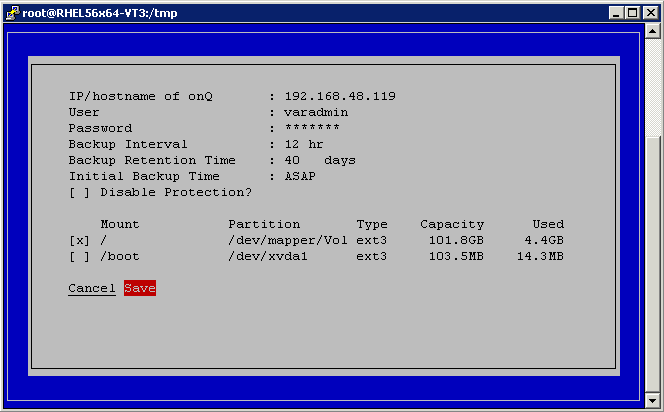
# python ./install.py
|
|
•
|
For any Linux PN, you must protect both / and /boot and any other mount points that contain the necessary software to boot the RN.
|
|
•
|
For PNs running RHEL 5.x and due to the known limitation outlined in Linux RN Limitations, set the Format (file system type) parameter for both the root partition (/) to ext3.
|
|
a.
|
Select Save to update/install the client node package on the Linux node.
|
|
b.
|
Wait! Do not press Enter. Was the installation successful? Use the error messages below to evaluate the screen output.
|
|
•
|
If yes, exit the script.
|
|
•
|
|
Install utility stops if you type incorrect/invalid values. Correct the problem and Save again or Cancel.
|
|
|
Turn off protection (go to Stop node protection). Press Enter for the GUI’s curser to reappear. Utility preserves all values entered previously.
|
|
•
|
UDP port 5990
|
|
•
|
|
13.
|
(Oracle database) Install RMAN scripts.
|
If the PN has an Oracle database, install the RMAN scripts so that onQ can execute a hot backup of your database as outlined in Back up and restore Oracle 11g database.