|
1.
|
Log on to the HA Appliance’s onQ Portal.
|
|
2.
|
 |
PN is running and protection is turned on. Tooltip indicates PN online (agent‑based) or Proxy online (agent‑less).
|
|||||
 |
||||||
 |
||||||
 |
||||||
 |
||||||
 |
Protection is disabled on this node.
|
|||||
|
|
The acronym BoD appears next to the icon if Auto RN Creation (see Modify recovery node creation policy) is set to disabled.
|
|||||
 |
||||||
|
|
No Recovery Node is available. See Troubleshoot RN Problems. The acronym BoD appears next to the icon if Auto RN Creation (see Modify recovery node creation policy) is set to disabled.
|
|||||
 |
||||||
 |
||||||
|
|
||||||
 |
The Qf icon indicates that the filter driver is enabled.
|
|||||
 |
||||||
 |
||||||
|
|
||||||
|
|
||||||
 |
||||||
 |
||||||
 |
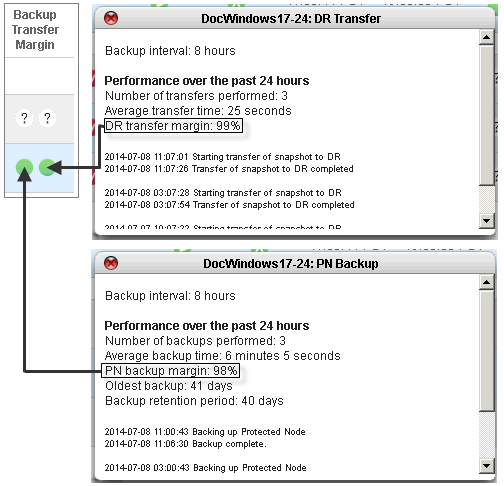
Indicates how well PN backups and DR transfers are keeping up with the backup interval as calculated by averaging intervals from the previous 24 hours. This 24‑hr time period automatically resets each time you restart protection.
|
|||||
 |
|
|||||
 |
||||||
 |