To quiesce an application or database for backup without manual intervention, simply use pre‑snap and post‑snap scripts:
|
•
|
For Windows PNs, you can define batch file scripts that run automatically before and after the HA Appliance creates a VSS snapshot.
|
|
•
|
pre_snap.bat and post_snap.bat. For Windows, click here to download .bat placeholder files to quiesce a DB2 database. In this example, each of the batch files in turn executes .clp scripts. These .clp scripts quiesce the DB2 database before the snapshot starts and again after the snapshot completes. After you create/install these scripts, they are not overwritten during a PN upgrade.
|
|
•
|
pre_snap.sh and post_snap.sh: For Linux, these placeholder files were saved to the destination you chose during the installation. The default location is /opt/quorum/bin. These scripts are not overwritten during a PN upgrade.
|
|
•
|
(Windows) \Program Files\Quorum\usr folder.
|
|
•
|
(Linux) the destination you chose during the installation. Usually, /opt/quorum/bin/ is the preferred directory.
|
|
3.
|
Log on to the HA Appliance’s onQ Portal.
|
|
4.
|
|
5.
|
|
•
|
Select the Execute Pre Snapshot script?: Yes radio button.
|
|
•
|
Select the Execute Post Snapshot script?: Yes radio button.
|

To quiesce an application or database for backup without manual intervention, simply use pre‑freeze and post‑thaw scripts:
|
1.
|
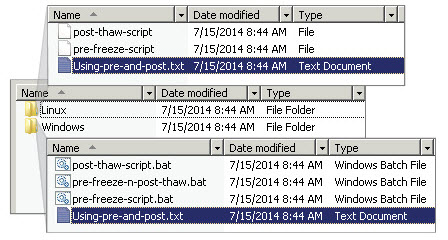
Download and unzip the example scripts. There are two folders, one for Windows and another for Linux. Each folder contains sample scripts.
 |
|
2.
|
Create pre-freeze-script.bat and post-thaw-script.bat files, specify the commands that you want executed.
|
|
•
|
(Windows) Save the pre-freeze-script.bat and the post-thaw-script.bat files under one of the following locations:
|
|
•
|
C:\program files\vmware\vmwaretools\backupScript.d\ folder. When using this path, both the pre and the post scripts can be combined as in the pre-freeze-n-post-thaw.bat example script.
|
|
•
|
C:\WINDOWS folder on the Protected Node.
|
|
•
|
|
•
|
Save the pre-freeze-script.bat and the post-thaw-script.bat files under /usr/sbin of the Protected Node.
|
|
•
|