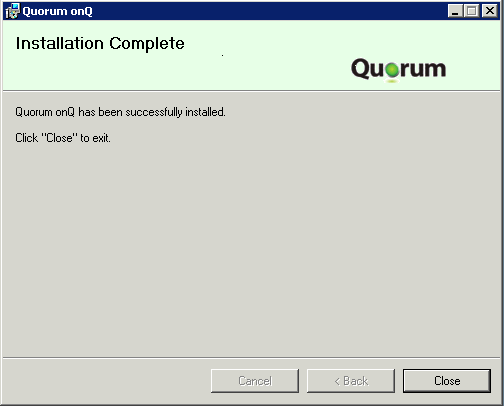
In this procedure, you will perform a manual install of the onQ Service on the cluster server.
|
2.
|
From that server, launch a browser (see Browser Support), then log on to the HA Appliance’s onQ Portal as varadmin.
|
|
a.
|
|
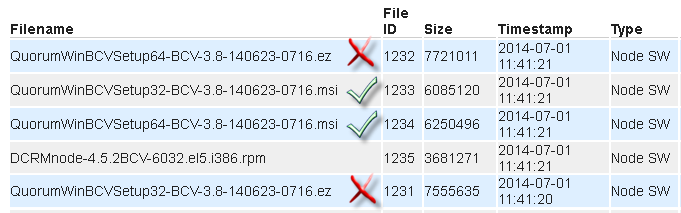
Warning: Do not download the.ez file, which is only intended for Protect Me‑based enrollments as outlined in (Agent‑based PNs) Restart the onQ Service), not manual installs.
|
|
b.
|
Scroll down and select the QuorumWinBCVSetup<bitVersion>-BCV<build>.msi file that matches your server’s operating system.
 |
|
c.
|
Click the DOWNLOAD button, saving the file to your Downloads folder. Stop! Do not run this file yet because you might not have the necessary User Account Control levels.
|
|
a.
|
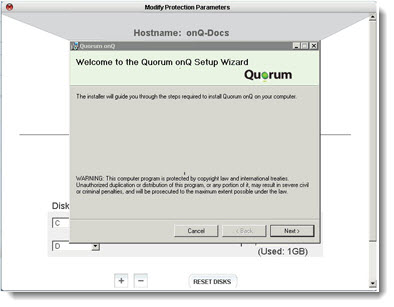
Open the Downloads folder. On the newly downloaded msi installer, right‑click > Run as Administrator. If prompted, do not put any restrictions on this account.
|
|
b.
|
|
•
|
|
•
|
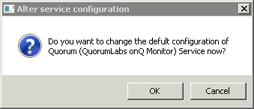
Click OK, then, in the dialog that launches, specify the account and credentials that you want the service to use, then OK. For example, you can configure the service to run as administrator. If you want the service to run as the domain administrator specify the domain:
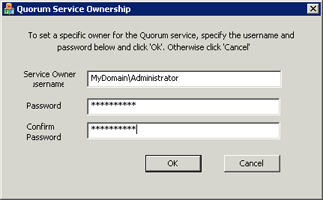 |
A service running on Windows generally runs as a user account, usually Local System by default. However, you can configure the service to run as any user. At the end of the process, onQ Manager presents you with a summary of the PN's proposed configuration.