Disaster Recovery and DR Preparedness : Start recovery nodes on DR Appliance or DR Mirror

Start recovery nodes on DR Appliance or DR Mirror
In the event of a disaster, you might need to start an individual recovery node, a group of recovery nodes, or all the recovery nodes on the DR Appliance.
Use this procedure in conjunction with the appropriate failover or failback procedures.
•
•
•
•
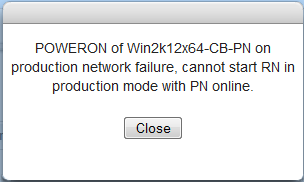
When you start an RN, whether agent‑based or agent‑less, you are indirectly shutting down the PN and PN proxy (VM) respectively and disabling backups for that PN.
It’s possible to allocate resources to recovery nodes beyond what is physically available on the onQ Appliance. If you don’t have enough memory to start all the recovery nodes, you have two choices:
•
You can change the memory allocation of PNs so that the total is less than the memory on the onQ Appliance.
•
To start all recovery nodes in production mode:
1.
(Optional) Consider suspending RN tests to “free up” resources.
2.
3.
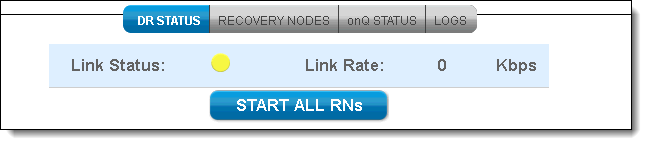
From the DR Appliance, go to DASHBOARD tab > DR STATUS page.
4.
5.
Click on the START All RNs button.
6.
Click Apply to start all the DR recovery nodes.
When you start in production mode, the startup order will take into account the order you specified in Configure startup dependencies.
To start a group of recovery nodes in production mode or test mode:
1.
From the DR Appliance, go to DASHBOARD tab > RECOVERY NODES page.
2.
3.
For the group, click the Power State () button.
4.
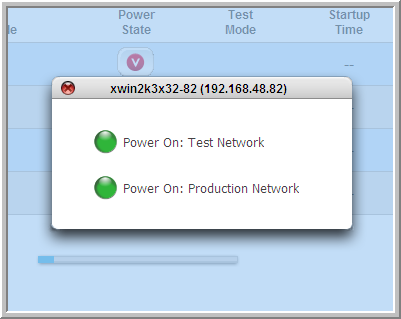
Select either Power On: Test Network or Power On: Production Network.
The startup order will take into account the order you specified in Configure startup dependencies.
To start an individual recovery node in production mode:
You might be prompted to install application-specific software licenses upon startup of recovery nodes.
1.
(Optional) Consider suspending RN tests to “free up” resources.
2.
3.
From the DR Appliance, go to DASHBOARD tab > RECOVERY NODES page.
4.
Locate the Power State column.
When you click the button in the Power State column, a box appears that offers you a choice between the following two alternatives: Power On: Test Network or Power On: Production Network.
5.
Choose the Power On: Production Network power option.

v3.8 SP1
v3.8 SP1