If, however, your protected node’s server failed, you need to perform a bare metal restore (BMR) as outlined in Restore PNs Using QUARK. You can choose to replace the current file, folder, or drive, or to store it on any protected node or standalone server so long as it is reachable from your network.
If you have a 6.x RHEL PN, ensure that you have the nc utility installed as outlined in Step 6 of (Agent‑based Linux PNs) Enroll protected nodes.
|
1.
|
Log on to the Appliance’s onQ Portal.
|
|
2.
|
|
3.
|
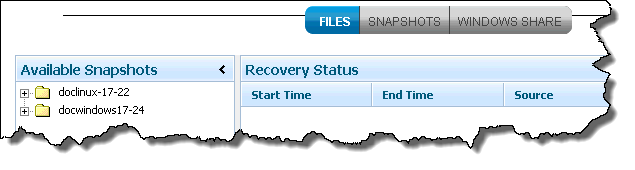
In the Available Snapshots pane, expand the folder for the protected node.
|
|
•
|
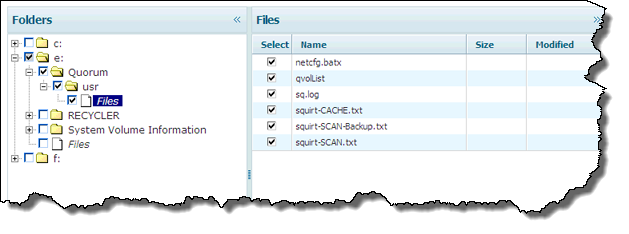
Click Files to display the individual files in the content pane to the right. Then, in the content pane, you can select the individual files that you want.
|
Another page, labeled Step 2, appears:
|
•
|
Do you want to restore to a Protected Node? You can restore to the same or different Protected Node.
|
|
•
|
Do you want to restore to a Standalone Server? Do so if you’d like to inspect the files before you restore a Protected Node with them.
|
|
a.
|
In the Destination PN to restore drop‑down, specify the recovery destination—the host where you want to store the retrieved files. The destination can be one of the following:
|
<PNHostname>. This destination is a PN, either the same PN or a different PN. Choose this option if you chose “Protected Node” in Step 6. To ensure that you restore your files correctly, only PNs that share the same operating system as the host that owns the snapshot that you want to restore appear in the list. If applicable, in the Specify Restore Drive drop‑down, choose a drive to which you want to save the files
Other. This destination is a host that is not a PN. Choose this option if you chose “Standalone Server” in Step 6. If you have an agent‑less PN, this is the only supported option for FLR. When you select Other, a text box appears labeled Destination hostname or IP address. Type the address of your desired destination server. In the Specify Restore Drive drop‑down, choose a drive to which you want to save the files. 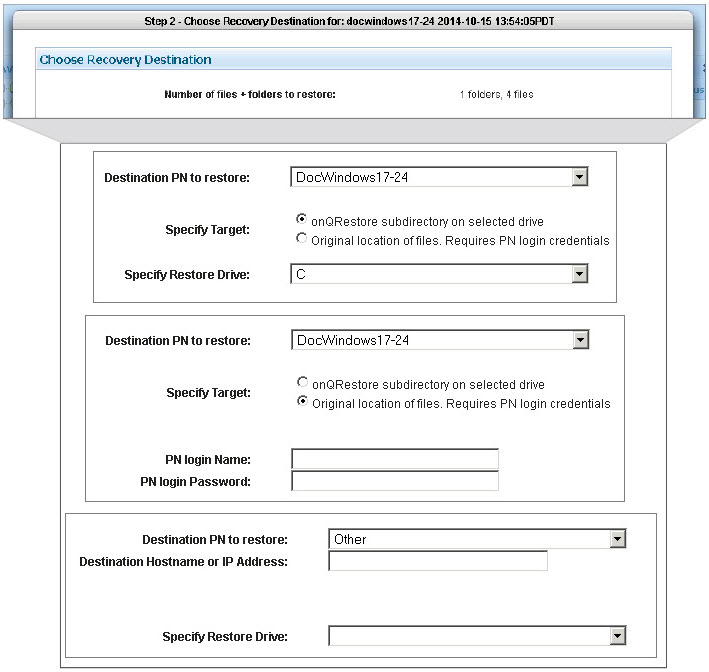 Skip to Step c.
|
b.
|
If applicable, in the Specify Target field, choose a target. A target can be one of the following: (1)
|
|
•
|
onQ Restore subdirectory on selected drive. The files will automatically be saved to a default restore location on the drive that you select and that distinguishes the FLR from multiple different snapshots and maintains the relation of the files to a given snapshot:
|
(Linux) – mountPoint/onQRestore/pnName/snapShot timeStamp. /onQRestore... if you chose /or /boot/onQRestore... if you chose /boot.
|
•
|
Original location of files. Choose this option if you want to overwrite the existing files. There are limitations to this option (see File‑level Restore Limitations). Skip to Step 8.
|
|
c.
|
|
•
|
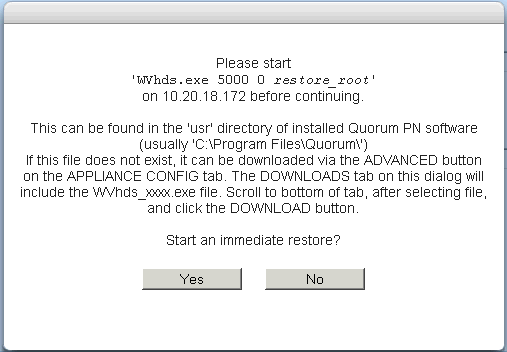
(Windows/Automatic Process) Type the PN’s credentials, then wait for WVhds_<build>.exe to automatically validate those credentials. These credentials are not stored on the onQ in any database or log file.
|
|
•
|
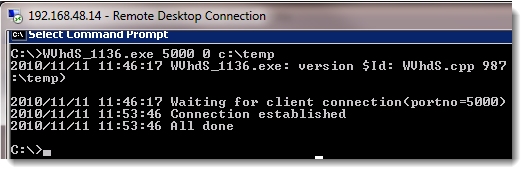
(Windows/Manual Process) Download and execute WVhdS_<build>.exe on the remote host as the example below shows. Retrieve this file from APPLIANCE CONFIG tab > ADVANCED button > DOWNLOADS subtab. From a DOS prompt, run the following command:
|
|
# WVhdS_version.exe 5000 0 restore-location
|

|
•
|
(Linux/Manual Process) Download and execute onQFLRSelf.sh, which automatically untars a file to the recipient that you define, on the remote host. Retrieve this file from APPLIANCE CONFIG tab > ADVANCED button > DOWNLOADS subtab.
|
|
# cd <restore-location>
# wget http://<OnQ-IP-address>/onQFLRSelf.sh
# sh onQFLRSelf.sh
|
|
8.
|
 |
|
 |
|
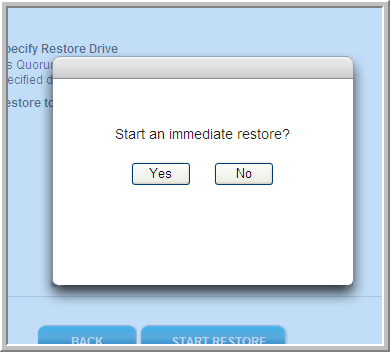
Afterward, the onQ Portal returns you to the main RESTORE page.
|
a.
|
|
•
|
The left pane (Available Snapshots) - shows available snapshots, as folders, listed in a hierarchical structure by node, date, and time.
|
|
•
|
The right pane (Recovery Status) - shows your previous efforts at retrieving files from snapshots. The carat to the right symbolizes the result of each restore attempt.
|
 |
Restore failed. If you roll your cursor over the icon, you see a reason for the failure. This error can occur if the Netcat (nc) utility is not installed on the target Linux node as outlined in Step 6 of (Agent‑based Linux PNs) Enroll protected nodes. Also, if this utility is missing, your var/log/messages indicate: /opt/quorum/bin/./FLR.sh: line 44: /usr/bin/nc: No such file or directory.
|
|
|
|
||
|
|
||
|
Typically this error occurs when your target option is Original location of files. To view the errors, open the quorum-wvhds.log file on target.
|
||


|
•
|
(Standalone Server) Verify that the restored files appear in the expected destination.
|