To automatically apply an update:
|
•
|
You must log on as VARAdmin to update the software on your onQ Appliance(s).
|
|
•
|
Unless instructed to do so in (Start Here) Upgrade Support and Requirements, there is no need to stop protection to apply the updates. If protection is on, onQ quiesces the system, stops protection, applies the new software, then restarts protection. The upgrade process reboots the onQ, if required.
|
|
•
|
For onQ Appliances that are multi‑tenant, you must upgrade them one tenant at a time and in one session. Unless instructed to do so in (Start Here) Upgrade Support and Requirements, it is not necessary to reboot the onQ Appliance after each tenant upgrade. A reboot after the last upgrade will suffice.
|
Before you begin, verify that your upgrade path is supported and learn about any pre‑upgrade and post‑upgrade requirements. Go to (Start Here) Upgrade Support and Requirements.
|
1.
|
Log on to the onQ Portal. You must log on as varadmin user.
|
|
a.
|
|
b.
|
Click the Check for Updates button.
|
The onQ Portal’s DASHBOARD displays an Install Updates button after the new software downloads from onQ Central. The onQ STATUS page > Issues pane also displays an Appliance software upgrade available message. 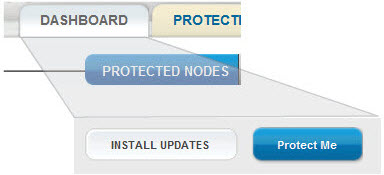
|
a.
|
Go to the DASHBOARD tab.
|
|
b.
|
Scroll down and click the INSTALL UPDATES button.
|
|
c.
|
Click the UPGRADE button when prompted to initiate the upgrade.
|
|
4.
|
 to display the status of the upgrade.
|
5.
|
From your browser, press CTRL-F5 to load and activate the onQ Portal changes.
|
To manually install an update:
You must log on as VARAdmin to update the software on your onQ Appliance(s).
|
1.
|
Log on to the onQ Portal. You must log on as varadmin user.
|
|
2.
|
|
3.
|
|
a.
|
Select onQ upgrade package 1, then Install.
|
|
b.
|
Select onQ upgrade package 2, then Install. If requested, reboot the onQ Appliance(s).
|
|
c.
|
'Select 'quark_xxxx.qpkg', then Install.
|
|
6.
|