In the event of a disaster, you might need to start an individual recovery node or a group of recovery nodes on HA Appliance.
On an HA Appliance there are two ways to start individual recovery nodes or a group of recovery nodes:
|
•
|
in production mode — use this mode if your primary protected node failed and you want to immediately start the recovery nodes in your production environment. After you fix the PN, don’t forget to stop the recovery node before bringing the PN online; otherwise, there will be network conflicts.
|
|
•
|
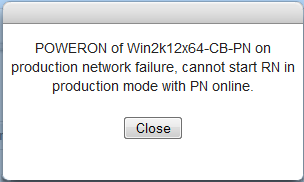
If you want to start all DR recovery nodes, go to Start recovery nodes on DR Appliance or DR Mirror.
|
1.
|
|
2.
|
|
3.
|
 ) button.
|
4.
|
When you start in production mode, the startup order will take into account the order you specified in Configure startup dependencies.
|
1.
|
(Optional) Consider suspending RN tests to “free up” resources.
|
|
4.
|
|
5.
|
|
6.
|
Click the button in the Power State column, then choose to enable or disable backups.
|

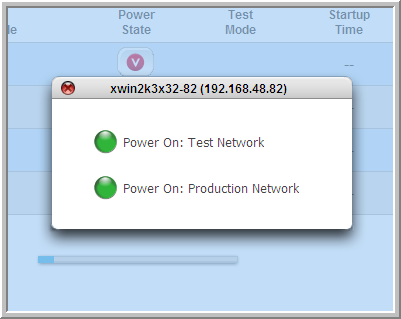
Another dialog box appears that offers you a choice between the following two alternatives: Power On: Test Network or Power On: Production Network.
|
7.
|
Choose the Power On: Production Network power option.
|
|
1.
|
(Optional) Consider suspending RN tests to “free up” resources.
|
|
3.
|
|
4.
|
|
5.
|
Click on the Connection Status button for the recovery node that you want to start.
|
An information box appears that offers you this option: Power ON the Recovery Node on the Production Network.
|
6.
|
Click Continue, to start the recovery node. If the recovery node has already started, this request does nothing.
|

Soon after, an exclamation icon appears to the right of the protected node and the Type field changes to RN, indicating that the recovery node is now running. 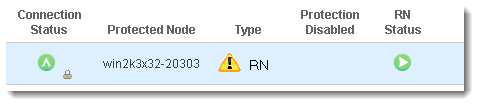
|
1.
|
|
2.
|
|
3.
|
Click the button in the Power State column.
|
A box appears that offers you a choice between the following two alternatives: Power On: Test Network or Power On: Production Network.
|
4.
|
A check mark appears in the Test Mode column of the appropriate status page, indicating that the recovery mode is running in test mode.
|
a.
|
Click the button in the Power State column.
|
|
b.
|
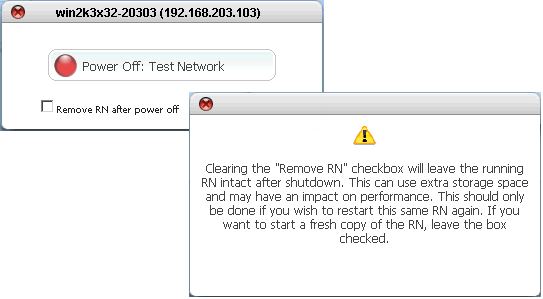
(Optional) Clear the Remove RN after power off check box if you want to retain this RN, keeping in mind that it is outdated.
|
|
c.
|
Click Power Off: Test Network option.
|
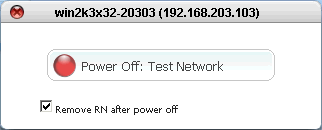
The icon in the Power State column changes color and orientation. There might be a delay of several seconds or minutes before the icon shows a change.
If you cleared the Remove RN after power off check box, then the following dialog will open the next time the RN is started. 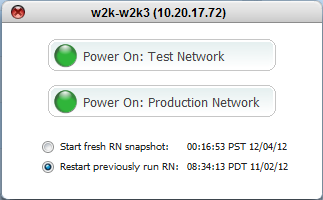
|
8.
|